
Convert
The Convert tab is the default view and the single entry point for both one-off conversions and large queued runs. Reforge dropped the separate Quick Convert and Batch Processing tabs in v0.6.0 — the same drop zone, file list, sidebar, and progress strip now handle everything.
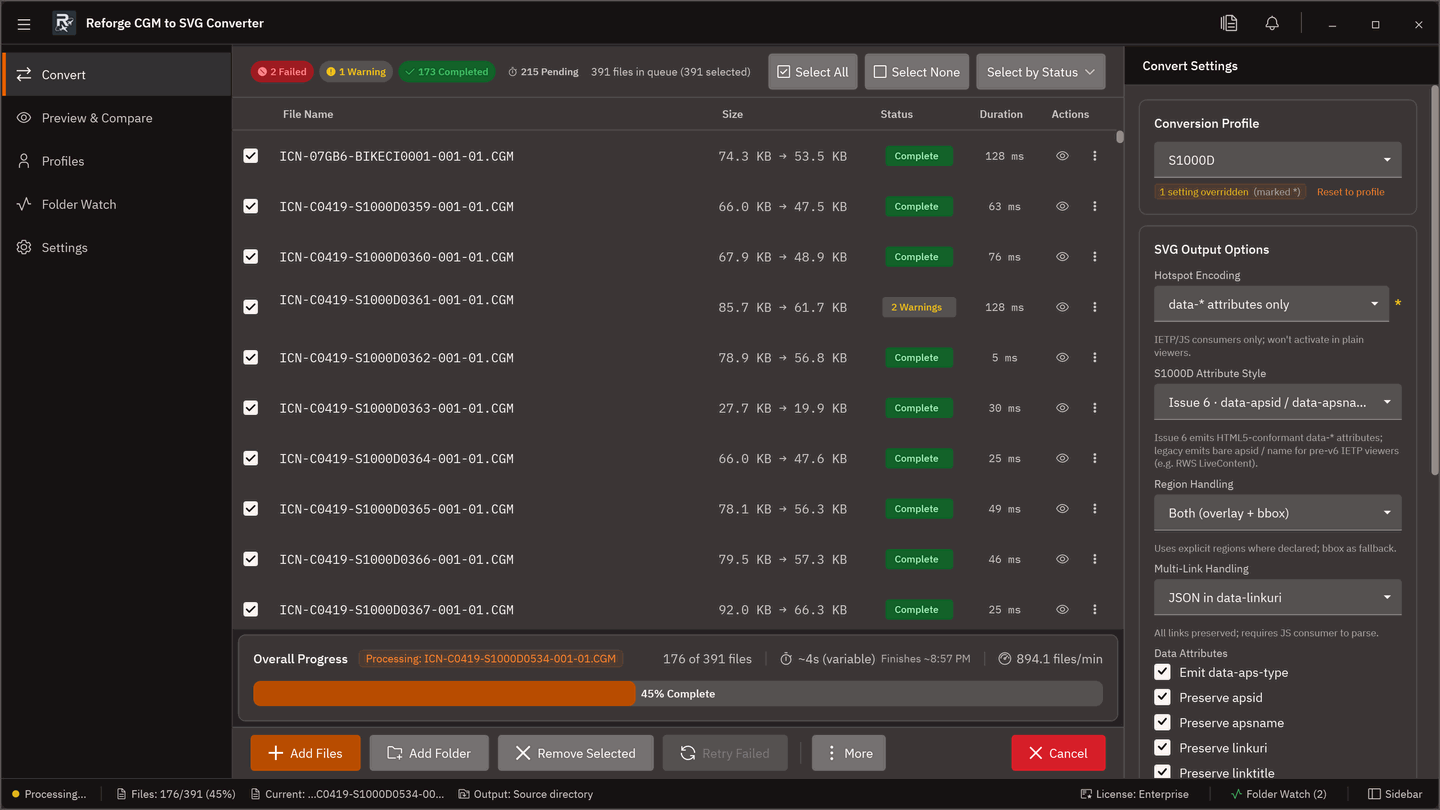
Adding files
| Action | Shortcut |
|---|---|
| Drag and drop files or folders onto the drop zone | — |
| Add individual files | ctrl+o |
| Add an entire folder | ctrl+shift+o |
| Select all | ctrl+a |
| Deselect all | ctrl+d |
| Remove selected | delete |
Picking the preset
The sidebar shows the active output preset (one of the seven built-ins from the Profiles tab) and the CGM input profile (or Auto-detect). Either can be overridden for the current run without changing your Profiles-tab defaults.
| Setting | Default | Notes |
|---|---|---|
| CGM input profile | Auto-detect | Tells Reforge how to interpret the CGM file. |
| Output preset | Last-used preset | See Profiles for the seven built-ins. |
| DPI | Preset-dependent | See the per-preset DPI ladder. |
| SVG Options sidebar | Inherits settings | Mirrors Settings > SVG Options; expand to override for this run. |
Trial watermark
Trial licence output includes a Reforge watermark. Upgrade to remove it. See Licensing.
Running the conversion
- Drop files, pick a preset, set the output directory.
- Press f5 or click Convert.
| Action | Shortcut |
|---|---|
| Start conversion | f5 |
| Pause (finishes current file) | f6 |
| Resume | f6 |
| Cancel | escape |
| Select failed files | ctrl+e |
| Retry failed files | ctrl+r |
| Retry selected files | ctrl+shift+r |
| Requeue selected files | ctrl+shift+q |
Progress, ETA, slow-file detection, and pause/resume work for single files and large batches alike.
Validation before convert
Each preset has a Validate before conversion toggle (on by default for Standards presets). When enabled, files that fail profile-specific checks are surfaced in the file list with severity badges before conversion starts. Press shift+f6 to run validation without converting. Full severity model in Validating files.
Preview & Compare
Once a file has been converted, open Preview & Compare from its row in the file list for side-by-side or overlay inspection. See Preview & Compare.
Error handling
Configure in Settings > File Handling or the sidebar for this run only:
| Option | Behaviour |
|---|---|
| Skip File (default) | Log the error and continue |
| Try Convert Anyway | Attempt conversion despite validation errors |
| Stop Batch | Halt on the first error |
| Ask Each Time | Prompt per failed file |
Completion report
At the end of a run, Reforge writes a JSON report listing each file’s outcome, detected profile, and any errors. Recent runs also appear in the Folder Watch tab, which reads the JSONL conversion log.
After conversion, select completed files and choose Export to PDF to produce A4 Portrait PDF files.
What next?
- Profiles — the seven built-in presets and the CGM input profile dropdown.
- Folder Watch — watch progress and review the JSONL conversion log.
- Validating files — severity model and issue explainer.